This release is packed with improvements that make managing your site feel faster and more intuitive than ever. A redesigned draft mode, a powerful new actions dropdown, sortable and filterable page tables, smart hover tooltips, and — one of the most requested features — file uploads directly inside the Editor Panel. Here's everything that's new.
Redesigned Draft Mode with Floating Exit Button
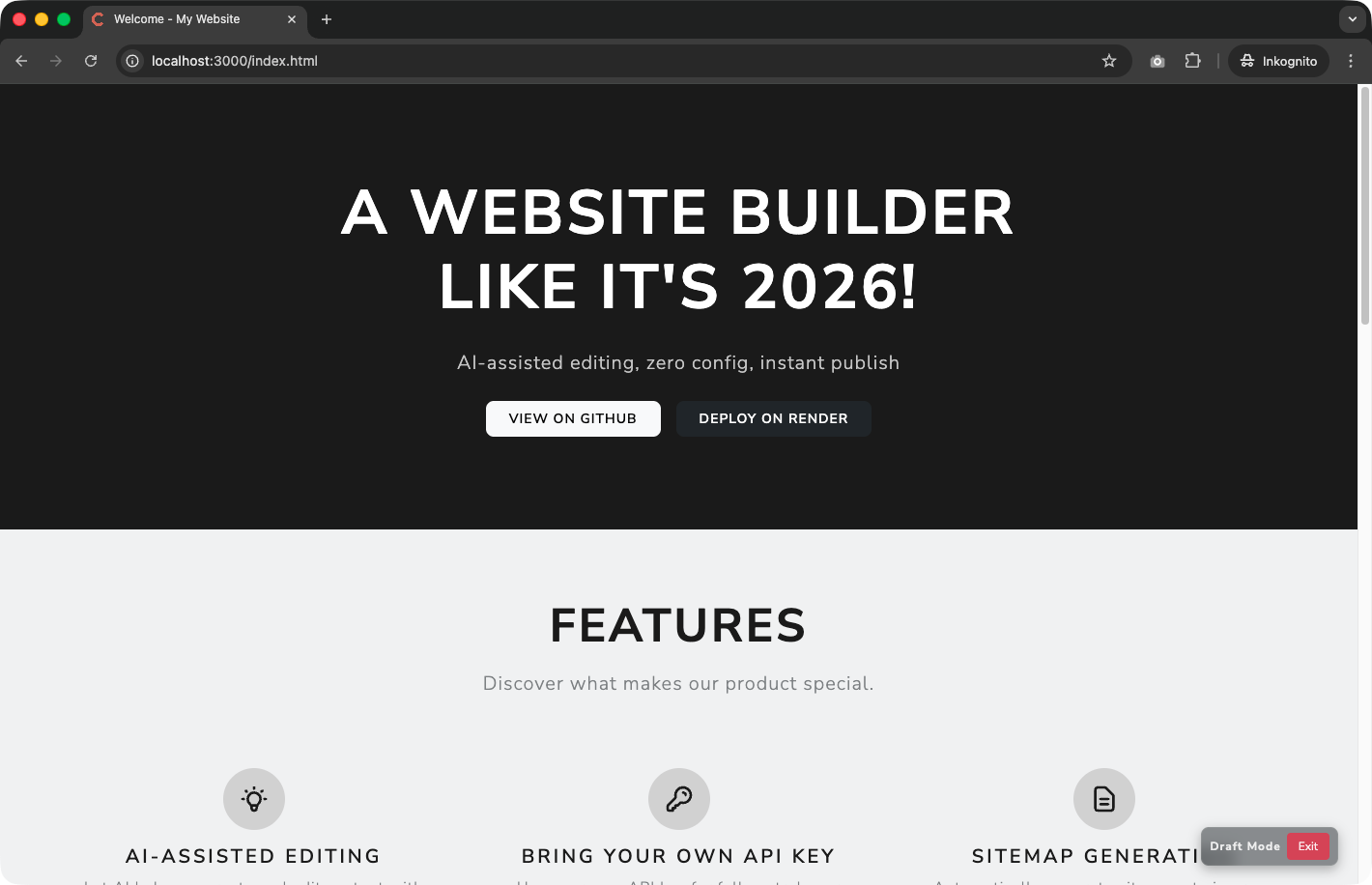
Draft mode just got a whole lot cleaner. Instead of a bar that takes up space at the top of the page, you'll now find a sleek floating indicator in the lower-right corner. It tells you at a glance that you're viewing the draft version, and the bright red Exit button is always within reach — no scrolling back to the top required.
It's a small change that makes a big difference when you're reviewing long pages. You stay focused on your content, and leaving draft mode is always one click away.
Actions Dropdown: Everything in One Place
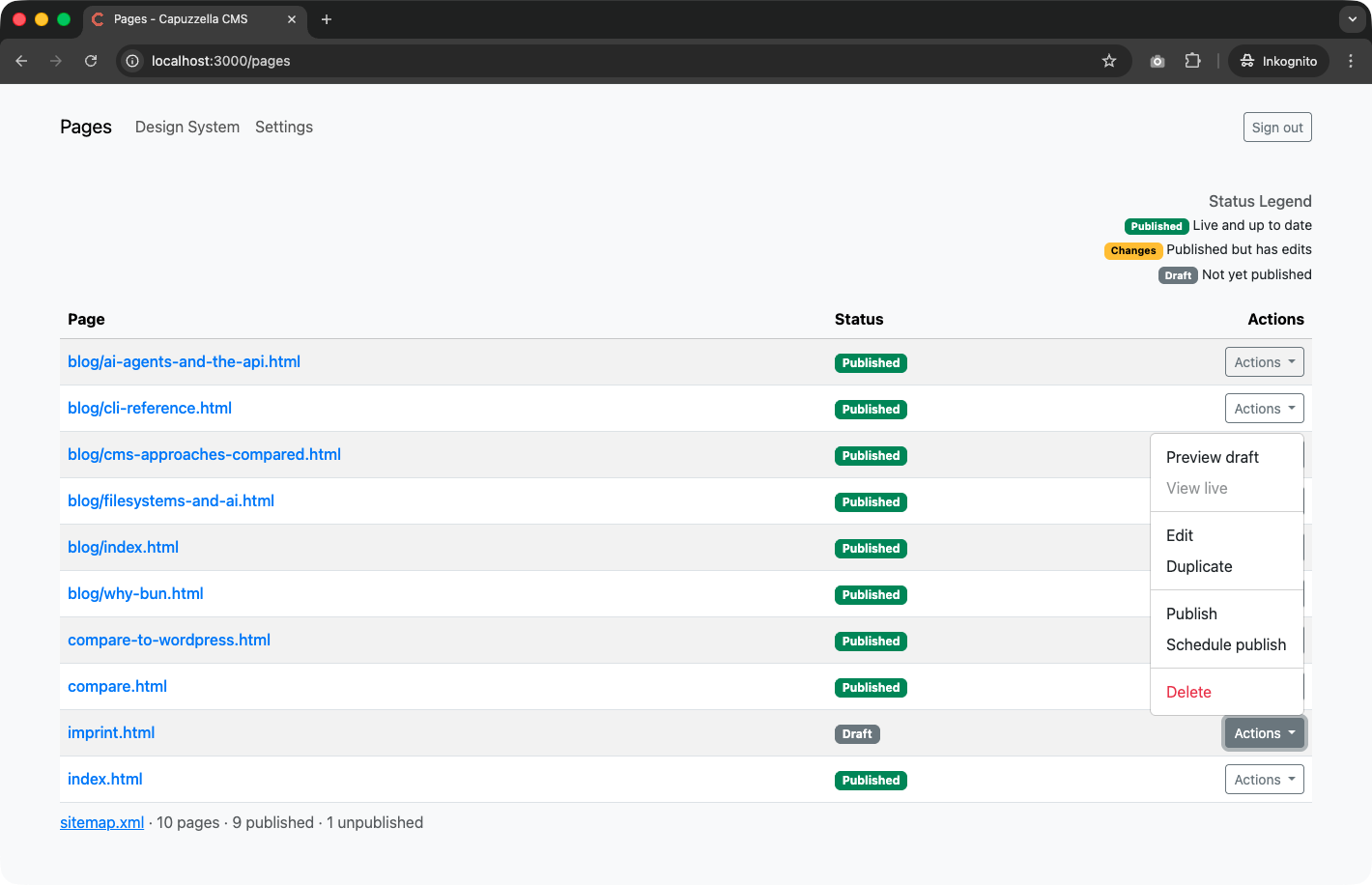
The Pages table has been completely revamped. Every action you need — previewing drafts, viewing the live version, editing, duplicating, publishing, scheduling, and deleting — is now neatly organized inside a single Actions dropdown for each page.
Two brand-new actions steal the spotlight: Preview draft lets you see exactly how your unpublished changes will look before going live, and View live opens the currently published version in a new tab. No more guessing which version you're looking at — both are a click away.
Sort and Filter Your Pages Instantly
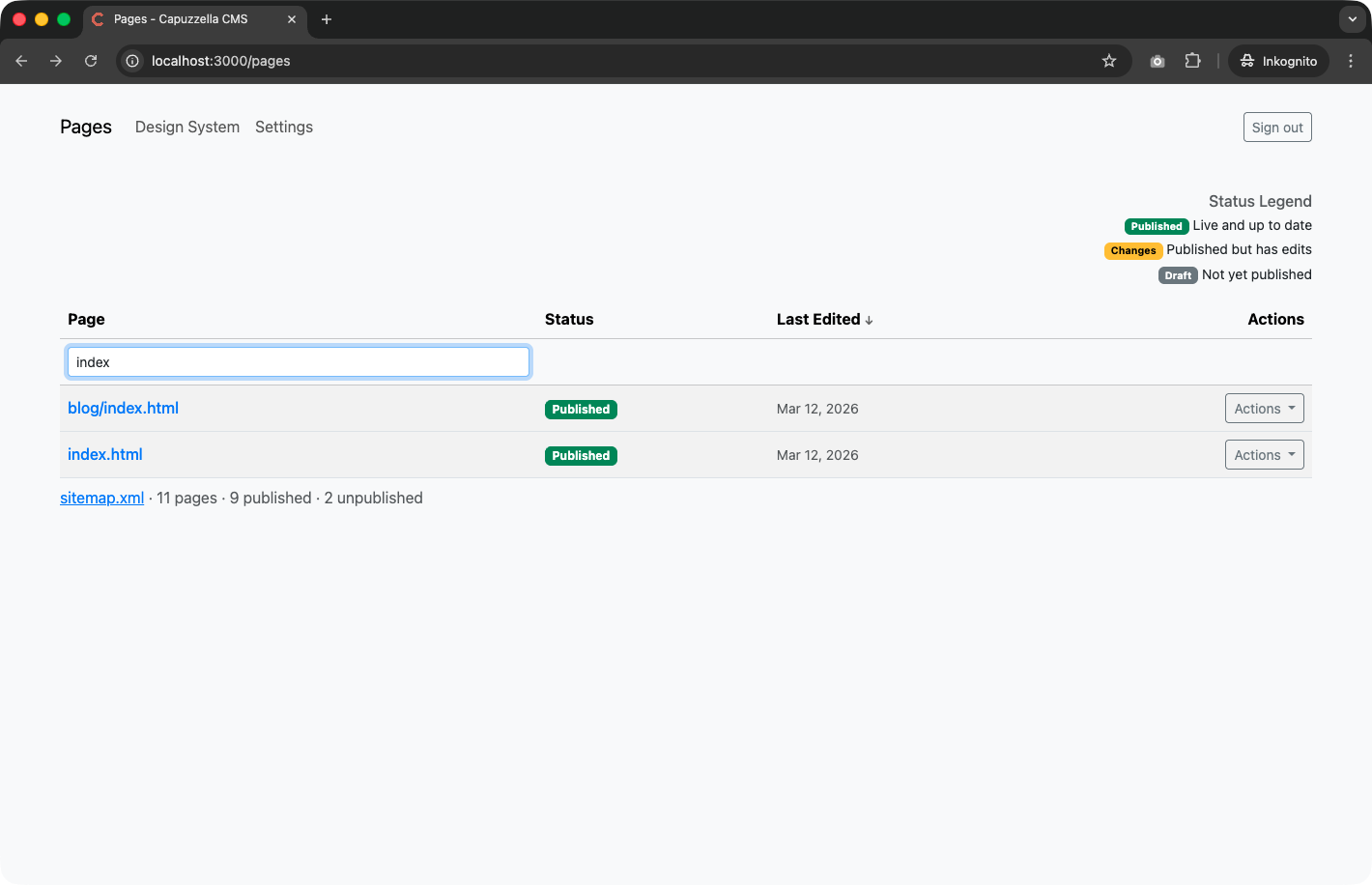
If you manage a site with dozens of pages, finding the right one used to mean scrolling. Not anymore. The Pages table now supports sorting by name, status, and last edited date, with the most recently edited pages shown first by default. Click any column header to toggle the sort order.
Even better, a new filter input field lets you type a page name and watch the list narrow down in real time. Whether you have 10 pages or 100, you'll find what you're looking for in seconds.
Hover Tooltips: Know Where You're Going
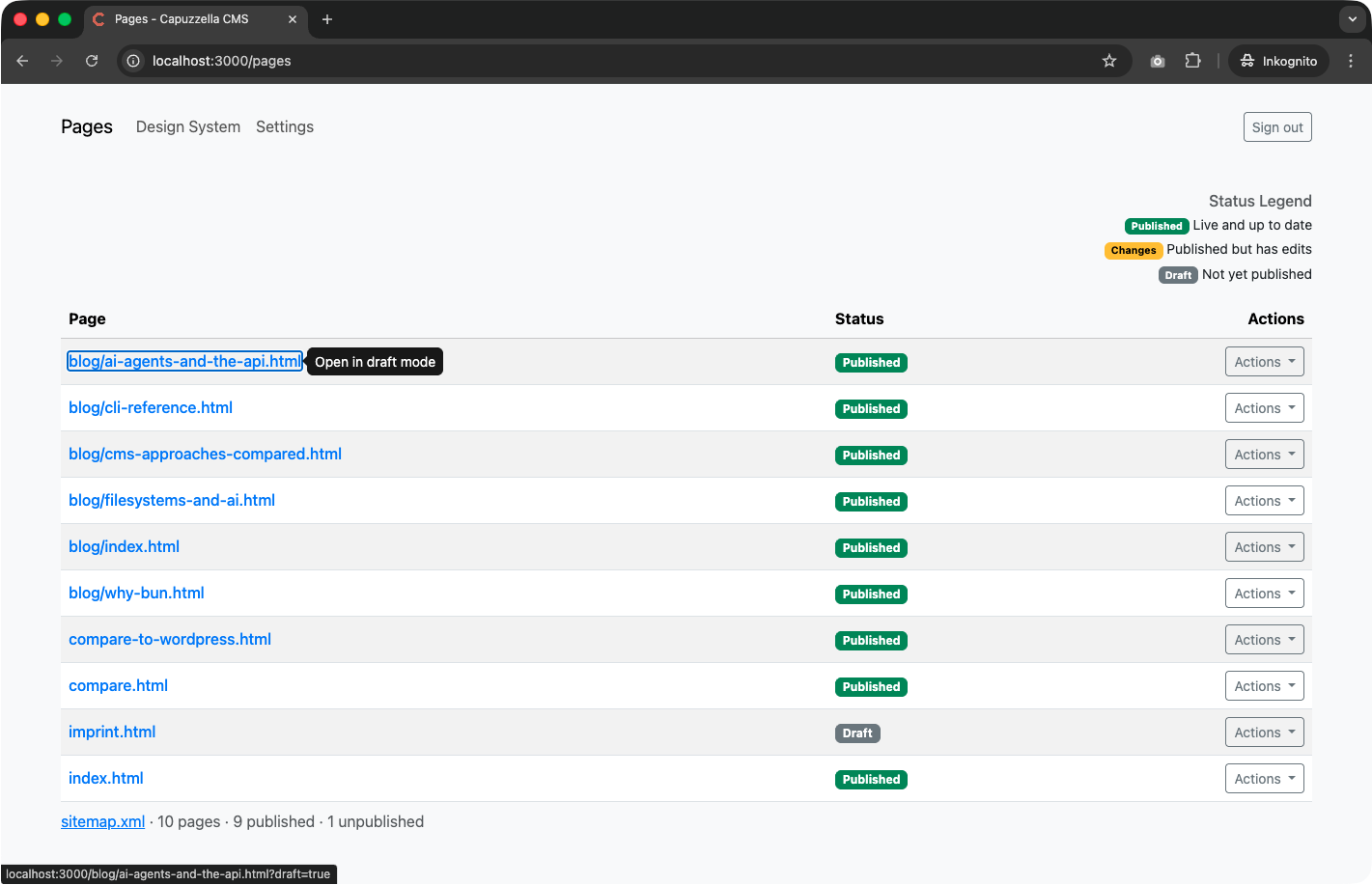
Here's a subtle but genuinely useful improvement. When you hover over a page link in the Pages table, a tooltip now appears saying "Open in draft mode". This makes it crystal clear that clicking the link takes you to the draft version of the page — not the live site. The same action is also available via the Preview draft option in the Actions dropdown.
No more accidental confusion between draft and live. You always know exactly what you're about to open.
Upload Files Right Inside the Editor
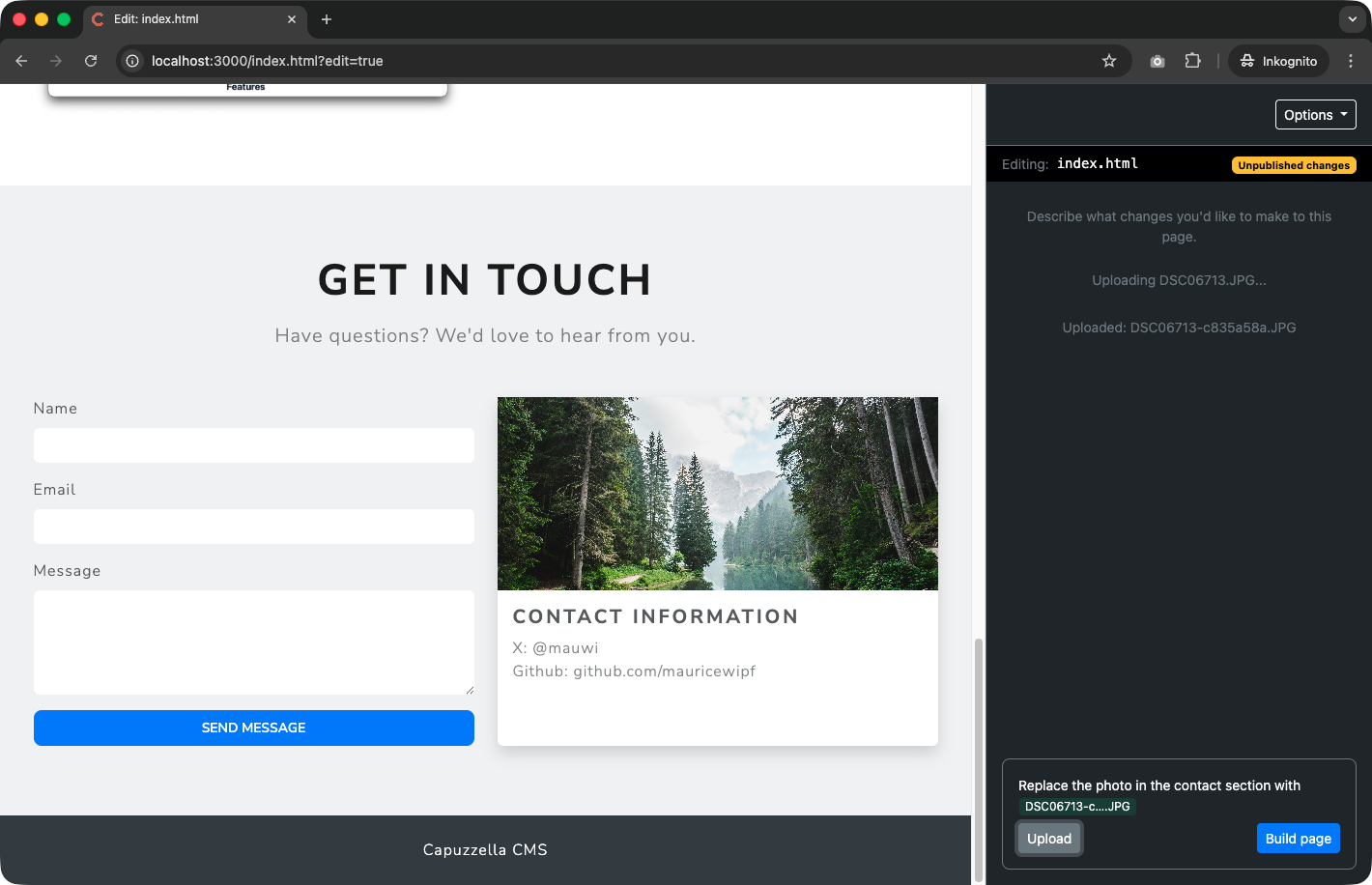
This is the big one. You can now upload images and other files directly from the Editor Panel. Drag in a photo, hit Upload, and the file is immediately available for use in your next editing instruction. Tell the AI to use the image you just uploaded, and it's already there — no external file manager, no separate upload step, no breaking your flow.
Whether you're adding a hero image, swapping out a team photo, or embedding a PDF, the entire process now happens without ever leaving the editor. For a deeper look at everything the Editor Panel can do — including uploads, AI chat, and the @ mention system — check out the complete Editor Panel guide.
Wrapping Up
This release is all about removing friction. Draft mode stays out of your way. Every action lives in a single, clean dropdown. Finding pages is instant. Hover tooltips eliminate guesswork. And file uploads happen right where you're already working. Together, these improvements make Capuzzella faster to use, easier to navigate, and more transparent about what's happening at every step.
Capuzzella is built for people who want a modern website without the overhead of a traditional CMS — and this is just the beginning. I'd love to hear what you're building with it. Drop me a line at maurice.wipf@mauwi.me and let me know what you think.