Every website needs images, videos, documents, and other media files. Capuzzella's Asset Management system gives you a central place to upload, organize, and manage these files. Whether you're adding product photos, team headshots, or PDF downloads, the Assets page provides everything you need — with seamless integration into the AI-powered editing workflow.
See it in action:
Accessing the Assets Page
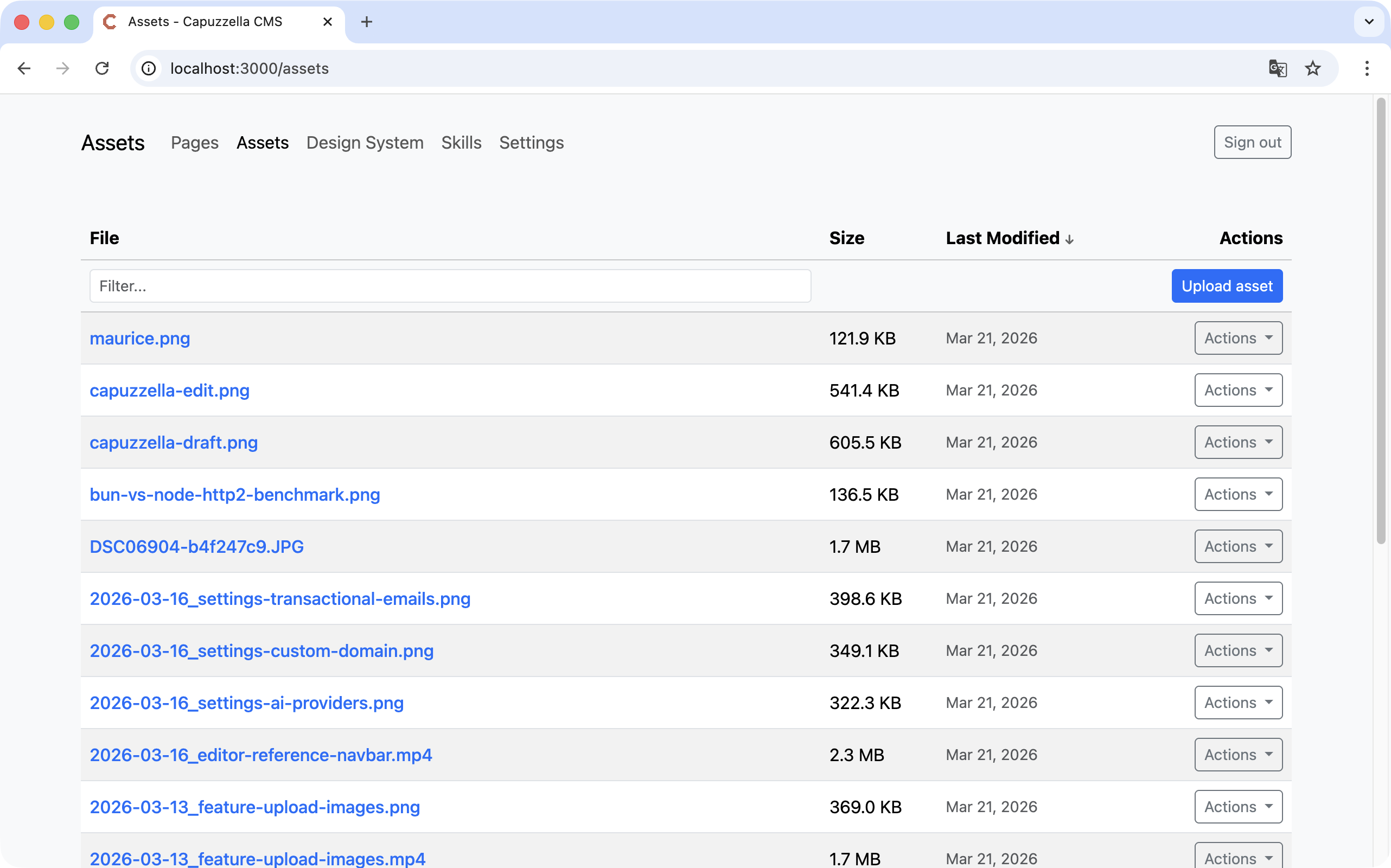
Navigate to the /assets path
on your Capuzzella site to open the Asset Management interface. This page displays all files
uploaded to your project in a sortable table view with file names, sizes, and modification dates.
The Assets page is accessible from anywhere in your project. When you're in edit mode, you can also reach it through the Options dropdown in the Editor Panel. This makes it easy to manage files while you're actively working on page content.
Uploading Assets
Adding new files to your project is straightforward. The Assets page features an Upload button that opens a file picker dialog. Select one or multiple files from your computer, and they'll be uploaded immediately to your project's public directory.
Supported file types include:
- Images: JPEG, PNG, GIF, WebP, SVG
- Videos: MP4, WebM, MOV
- Documents: PDF, TXT
- Other: Common web asset formats
Once uploaded, files are immediately available for use across all pages in your project. You can sort by file name, size, or modification date, and filter to quickly find specific assets in your collection.
Tip: You can also upload files directly from the Editor Panel using the Upload button next to the chat input. This is useful when you're in the middle of editing and need to quickly add a new image.
Filtering and Finding Assets
As your project grows, you might accumulate dozens or hundreds of files. The Assets page includes a powerful Filter feature to help you locate specific files quickly.
Type into the filter input to search across all your assets. The system matches your query against file names, displaying only assets that contain your search term. This is especially useful when:
- Looking for a specific image among many uploads
- Finding all files related to a particular topic or page
- Checking if a file already exists before uploading a duplicate
- Cleaning up old assets you no longer need
The filter updates in real-time as you type, showing matching results instantly without requiring a page reload.
Deleting Assets
When files become outdated or are no longer needed, you can remove them from the Assets page. Each asset card includes a delete option that removes the file from your project permanently.
Protection for Published Content
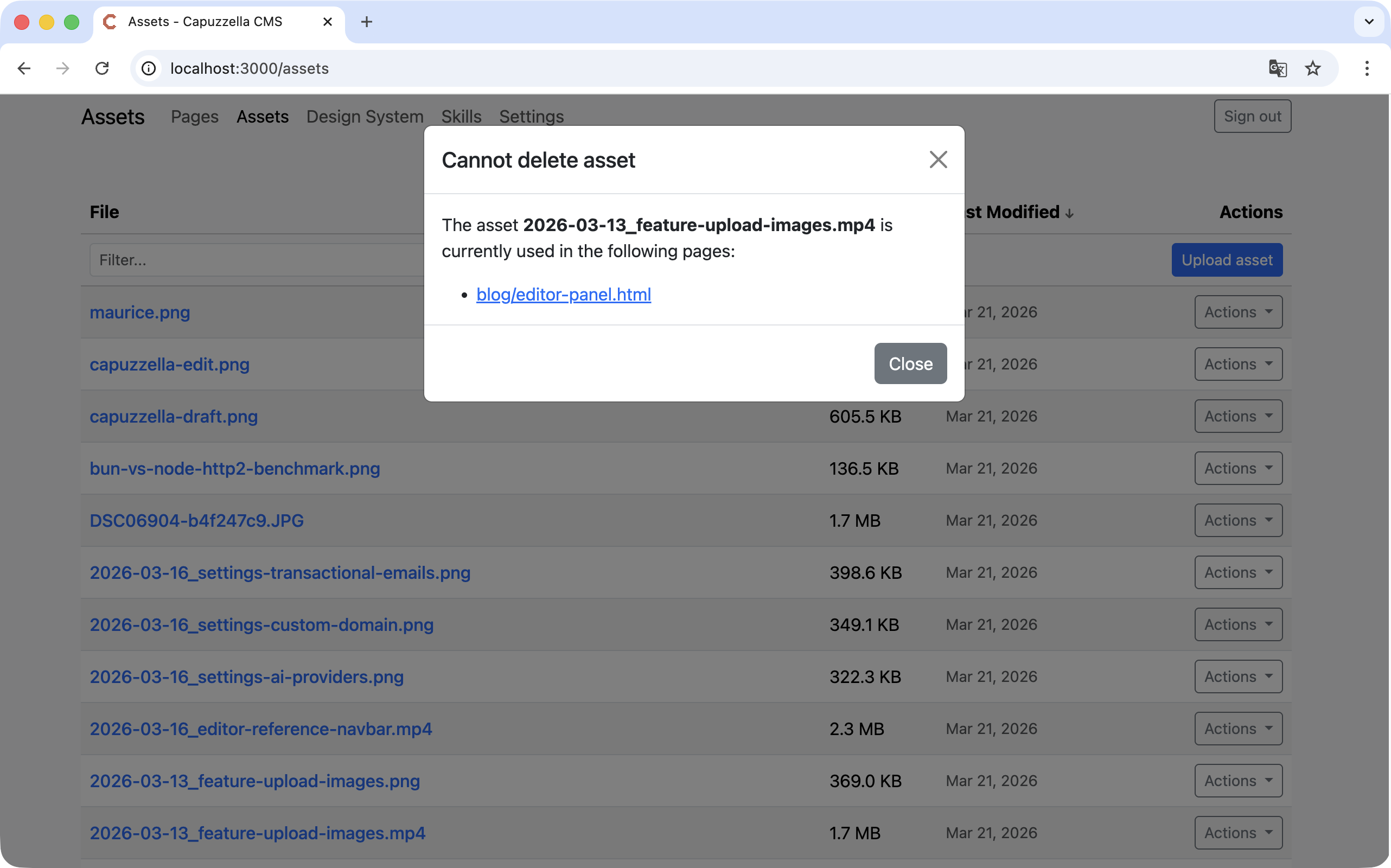
Capuzzella includes an important safeguard: assets that are currently used on published pages cannot be deleted. If you try to delete such an asset, you'll see a warning message explaining that the file is in use.
This protection prevents accidental breakage of your live website. An image referenced by a published page, if deleted, would appear as a broken link to your visitors. The system tracks which assets are in use and blocks deletion until you either:
- Remove the reference from the published page and publish the change
- Unpublish the page that uses the asset
- Replace the asset with a different file on the published page
This safety mechanism ensures your site remains fully functional even during active asset management.
Using Assets in the AI Editor Panel
One of the most powerful features of Capuzzella's asset system is its deep integration with the AI editing workflow. You can reference any uploaded asset directly in the Editor Panel's chat input, allowing the AI to see and use your files when generating or updating page content.
The @ Context Menu
To reference an asset in your AI chat, type @ in the chat input. A context
menu appears showing all available resources, including:
- Components — Your design system components
- Pages — Other pages on your site
- Assets — All uploaded files (images, videos, documents)
The assets section lists your uploaded files by name. As you continue typing after
the @, the menu filters to show only matching assets, making it quick to
find the exact file you need.
Example chat input:
"Replace the hero image with @team-photo.jpg and update the caption to match the new photo."
How the AI Uses Assets
When you reference an asset with @, the system inserts the file's URL into your
message. The AI can then add the image to your page with proper HTML markup using that path.
This means you don't need to remember file paths or manually type image URLs — just mention
the asset by name with @ and the AI handles inserting the correct path into your HTML.
Best Practices for Asset Management
-
Use descriptive file names: Names like
team-photo-jane.jpgare more useful thanIMG_1234.jpgwhen searching and referencing in chat - Optimize before uploading: Compress images and videos to reduce file sizes and improve page load times
- Regular cleanup: Periodically review your assets and delete files that are no longer in use to keep your project organized
- Use the filter: Before uploading a new file, search to see if a similar asset already exists
-
Leverage @ mentions: When editing pages, always use
@to reference assets — it's faster and more reliable than describing files by name
Summary
The Asset Management system in Capuzzella combines simple file management with powerful
AI integration. The /assets page gives you a central hub to upload, filter,
and delete files, with built-in protection to prevent breaking published pages. The
@ mention system in the Editor Panel connects these assets directly to your
AI editing workflow, making it effortless to use images and documents in your content.
Quick Reference: Go to /assets
to manage files. Type @ in the Editor Panel to reference any asset in your AI chat.