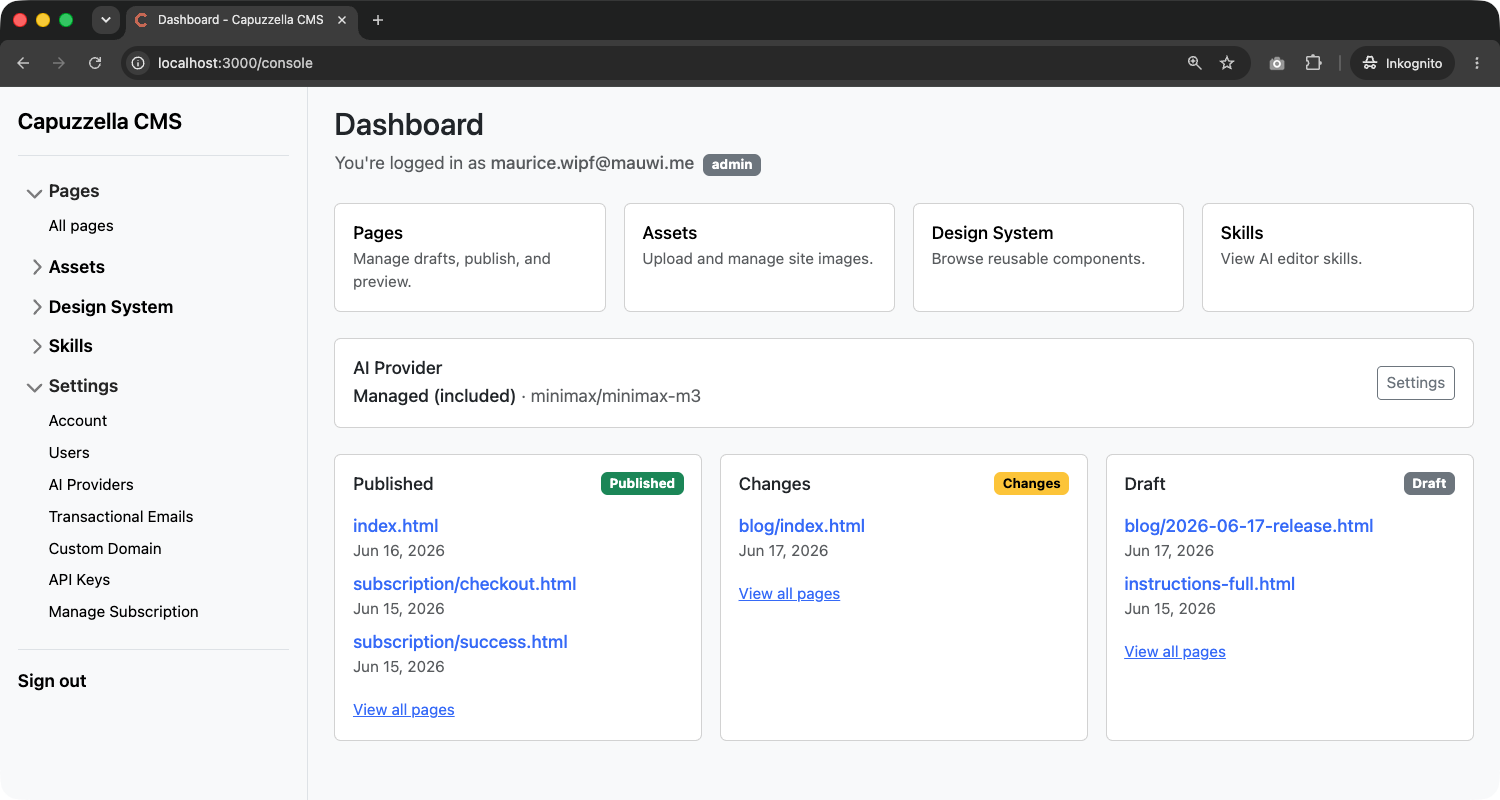
Logging in to Capuzzella used to drop you straight into the pages list. That works when you know exactly which file you need, but it tells you nothing about the rest of your site. The new dashboard is the first screen you see after sign-in — a short summary of where things stand before you go anywhere else.
Three Columns for Page Status
The bottom half of the dashboard splits your pages into three groups: Published, Changes, and Draft. Each column lists up to three pages, sorted by most recently edited. Click a page name to open its draft preview.
The distinction matters in day-to-day work. Published means the live snapshot matches the draft — nothing waiting to go out. Changes means the page is live but the draft has edits you have not published yet. Draft means the page exists only as a draft and has never been published.
If you have more than three pages in a group, the column still shows the three you touched most recently. That is usually enough to answer “what did I leave unfinished?” without opening the full pages table.
Quick Links and AI Provider
Above the status columns, four cards link to the main admin areas: Pages, Assets, Design System, and Skills. Same destinations as the sidebar, but visible without expanding anything. Useful when you log in with a specific task in mind and do not want to hunt through the menu.
Between the quick links and the status columns sits your current AI provider and model.
If you are on the included managed provider, you will see something like
Managed (included) with the active model name. If you brought your
own key, it shows the provider you configured. Either way, you can tell at a glance
which model the Editor Panel will use before you open a page with
?edit=true.
Where the Sidebar Takes You
The June 15 release added a collapsible sidebar across the admin UI. With the dashboard in place, clicking the brand link in the sidebar at the top brings you back here instead of the pages list. The pages table is still one click away — but home is now a summary, not a spreadsheet.
Your email and role appear under the Dashboard heading so you always know which account you are working in. Handy when you juggle a personal instance and a client instance in different browser profiles.
Already Live
The dashboard ships with every Capuzzella instance. Log in to yours and you will land on it automatically. No settings to change, no migration step.
If you are not a customer yet and want to try it, subscribe and spin up an instance. The dashboard is the first thing you see once your account is ready.
Not a customer yet? Subscribe now to get started.